Scripture on screen, as it is spoken.

Biblo listens to the preacher and suggests verses and lyrics live. Your operator taps once to project. Free for every church.
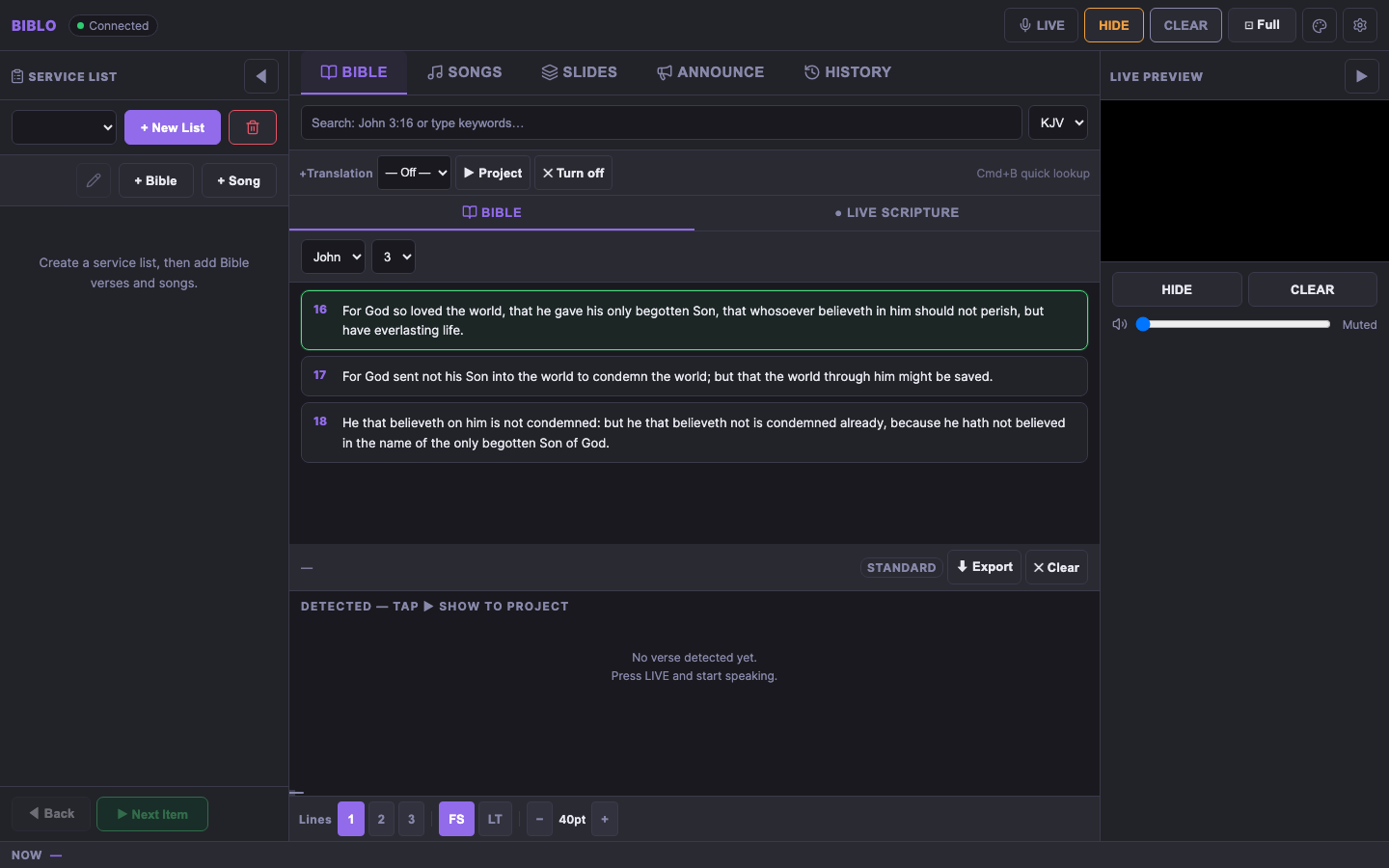
The Biblo operator panel showing John 3 in the King James Version, with a service list, live preview and projection controls.

Sunday, simplified.

Built for volunteers. If you can tap a card, you can run the projection.

1

Load your Bible and songs

Import any Bible XML file and your song lyrics, or plan the whole service in advance with a service list.

2

Press LIVE when the preacher speaks

Biblo transcribes the sermon and detects scripture references as they are said, in any English accent.

3

Tap to project

Detected verses appear as cards. Nothing reaches the screen until your operator approves it with one tap.

Everything a service needs.

Live voice detection

Tuned for African-accent English. The preacher says "John three sixteen" and the verse is on the operator's screen before the sentence ends.

Phone remote

Scan a QR code and control the whole service from any phone on the church Wi-Fi. Secured with a token only your QR carries.

Works without internet

Offline voice mode downloads once and runs forever. A full service with no connection at all.

OBS, vMix and NDI

A browser-source URL for lower thirds on your livestream, plus OBS WebSocket push and NDI output.

Service plans

Queue scriptures, songs and announcements for the day, then step through them in order from the panel or a phone.

First launch takes one extra click.

Biblo installers are not yet code-signed. Certificates cost money we would rather not pass on to churches, so your computer shows a one-time warning. Here is exactly what to do.

  1. Run the installer. SmartScreen says "Windows protected your PC".
  2. Click More info, then Run anyway. The normal installer opens.
  3. If the browser flags the download first: open the downloads list, choose Keep, then Keep anyway.

The warning appears once, for the installer only. It fades for everyone as more churches install Biblo.

  1. Open the .dmg and drag Biblo into Applications.
  2. If macOS says the app "is damaged or can't be opened": open Terminal and run xattr -cr /Applications/Biblo.app once, then launch normally.
  3. Alternative: System Settings, Privacy & Security, scroll down and click Open Anyway.

macOS quarantines every unsigned download. The command simply removes that quarantine flag.

  1. AppImage: run chmod +x Biblo-*.AppImage then double-click it.
  2. Debian and Ubuntu: install the .deb with your package manager.

No warnings on Linux. It simply trusts you.

How to run a service with Biblo.

Six short guides, in the order you will need them on your first Sunday.

1. Set up in five minutes
  1. Install Biblo and open it. The setup wizard starts on its own.
  2. Bible: import any Bible XML file. Free translations are at ebible.org.
  3. Screen: pick the projector or TV the congregation sees. A second screen goes fullscreen automatically.
  4. Voice: keep Offline voice (recommended). It downloads a voice model once and never needs internet again.
2. Project a verse by hand
  1. In the Bible tab, type a reference like John 3:16 or browse by book and chapter.
  2. Click a verse, then press Space or the Project button to put it on screen.
  3. B blanks the screen, C clears it, arrow keys step through your plan.
3. Let voice detection do the finding
  1. Press LIVE when the preacher starts. Biblo listens and transcribes.
  2. When a scripture is mentioned, it appears as a card with the full text.
  3. Tap Show on the card to project it. Nothing appears without your tap.
4. Add your songs
  1. In the Songs tab, click Import for .txt or .xml lyric files, or search lyrics online.
  2. Each verse and chorus becomes its own slide. Click a section to project it.
5. Plan the whole service in advance
  1. Open Service List, create a list for Sunday, and add scriptures and songs in order.
  2. During the service, Next Item steps through it. No searching mid-service.
  3. Scan the QR code in Settings to control everything from a phone on the same Wi-Fi.
6. Put verses on your livestream
  1. In OBS or vMix, add a Browser Source and paste the display URL from Biblo's Settings.
  2. Set it to 1920×1080. Projected verses now appear as lower thirds on the stream, with a transparent background.

All downloads

Fetching the latest version…

Updates install themselves: Biblo checks quietly and applies new versions next time you quit the app.

Help us make Biblo better.

Biblo is in open beta and we are inviting churches to test it. Run one service with it, then tell us what worked and what got in the way. Every report shapes the next version.